 Hourmark
Install or update Hourmark 1.7.0
Download Hourmark 1.7.0 for Chrome and extract the ZIP. Chrome cannot load a ZIP directly. Packaging provides an unpacked download; existing installations do not update automatically.
- Open
chrome://extensionsand turn on Developer mode. - Choose Load unpacked and select the extracted
Hourmark-1.7.0folder containingmanifest.json. - Pin Hourmark in the Extensions menu and open the toolbar popup.
Before updating, export a JSON backup from Settings. Copy the new files into your existing registered extension folder and click Reload on its Chrome extension card. Keep that folder in place. Uninstalling removes local data, so keep your backup even if you use optional Google backup.
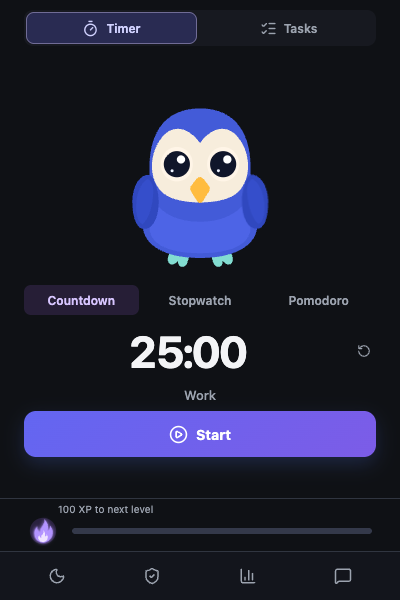
Start a timer
- Stopwatch counts up from zero.
- Countdown runs for a duration you choose.
- Pomodoro alternates focus and break rounds.
Choose a task if you want, then press Start. Enter a duration as minutes, 25:00, or 1h30m. Closing the popup keeps the timer running.
Use Pause or Resume as needed. Hold Finish until its bar fills to save the session. Release early to cancel. Pauses and breaks do not count as study time.
The owl works with you, flies during idle moments, and sleeps when you pause or finish. Click it to wake it without changing the timer. It respects your system's reduced-motion setting.
Organize your tasks
Open Tasks, enter a name and optional duration, then add it. Move tasks between To do, In progress, and Completed with the drag grip. With a keyboard, press Space on the grip, use Up or Down, then Space to drop.
The play button starts a task. Finishing its timer saves the session; completing the task is a separate action.
Use the floating timer's pencil to change your task or timer. Start saves the current session and begins your selection. Cancel keeps the current session.
Block distracting websites
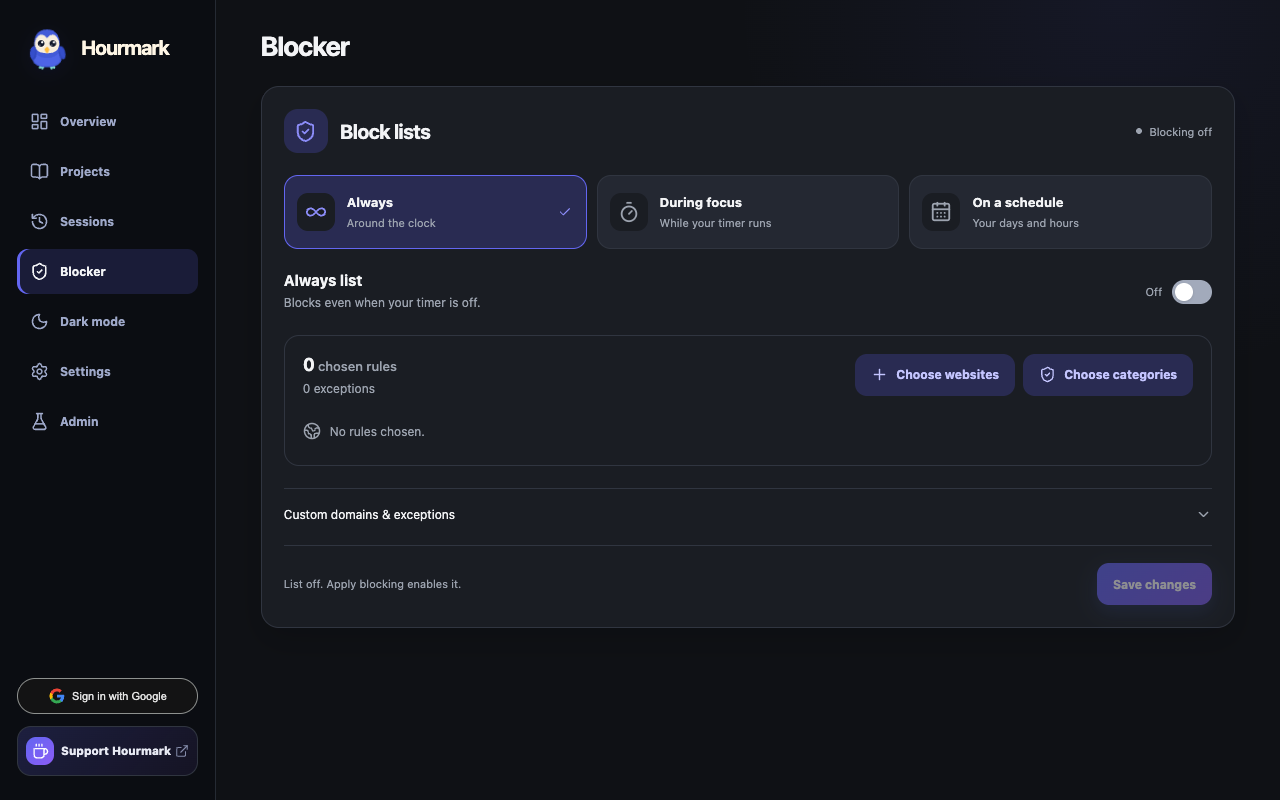
Open Blocker. Choose a collection, search suggestions, or enter a domain.
Always blocked stays active without a timer, including pauses and breaks. During focus applies only during running focus and releases on pause, break or completion. Each list saves its own domains, collections, allowed exceptions and enable switch. Save changes to the list you are editing. An exception in one list does not override a block in the other.
On a schedule blocks during your chosen local days and hours. Each list has its own exceptions.
Blocking covers matching websites and subdomains in Chrome. When blocking activates, matching open tabs redirect to the interruption page.
Review sessions and add time
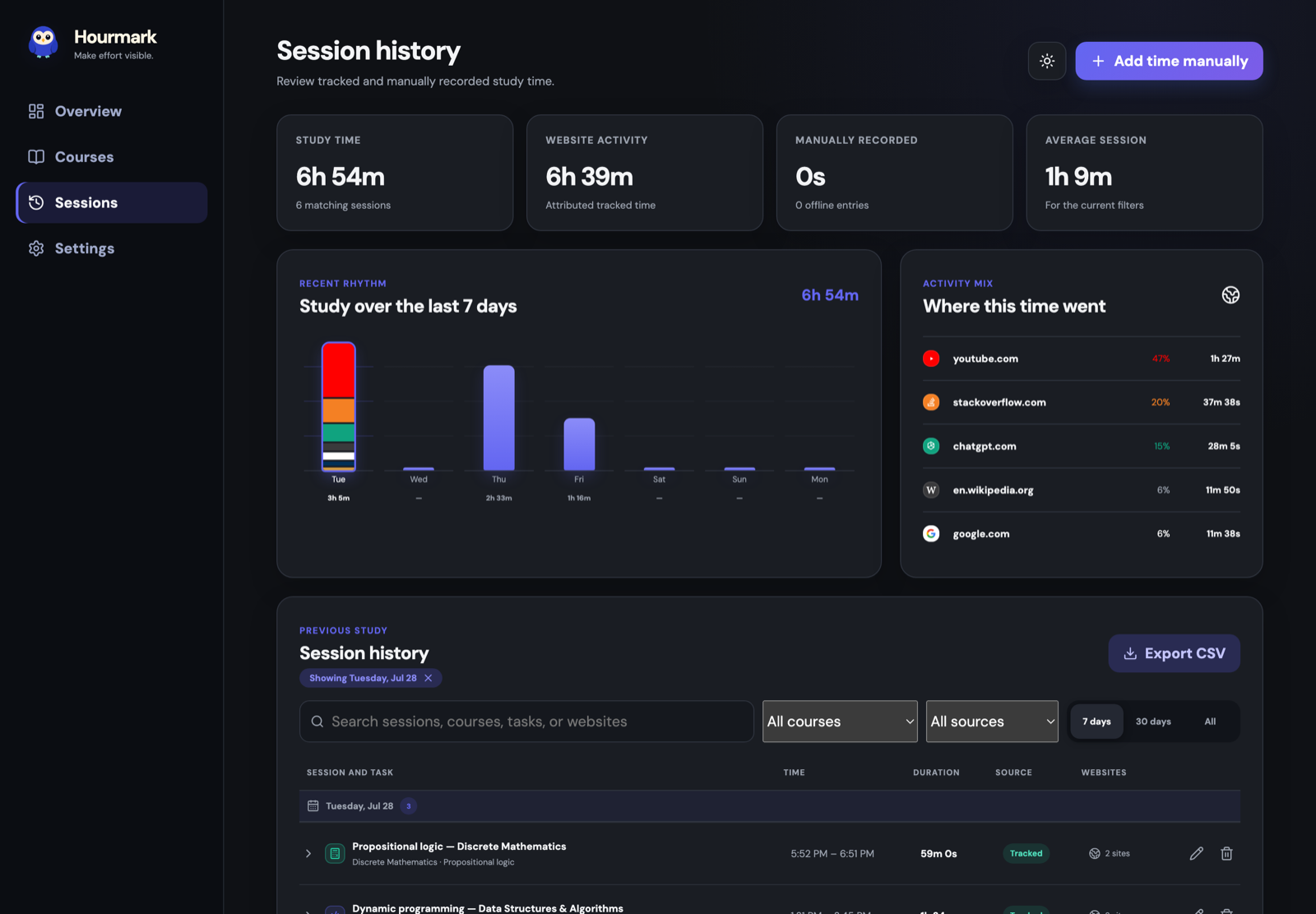
Open Sessions to search and filter history, correct records, and export CSV. Use the secondary Add time action here to record reading, handwritten work or study away from Chrome. Enter the date, duration, and course or task details. Overlapping entries are refused; added time has no invented browsing activity.
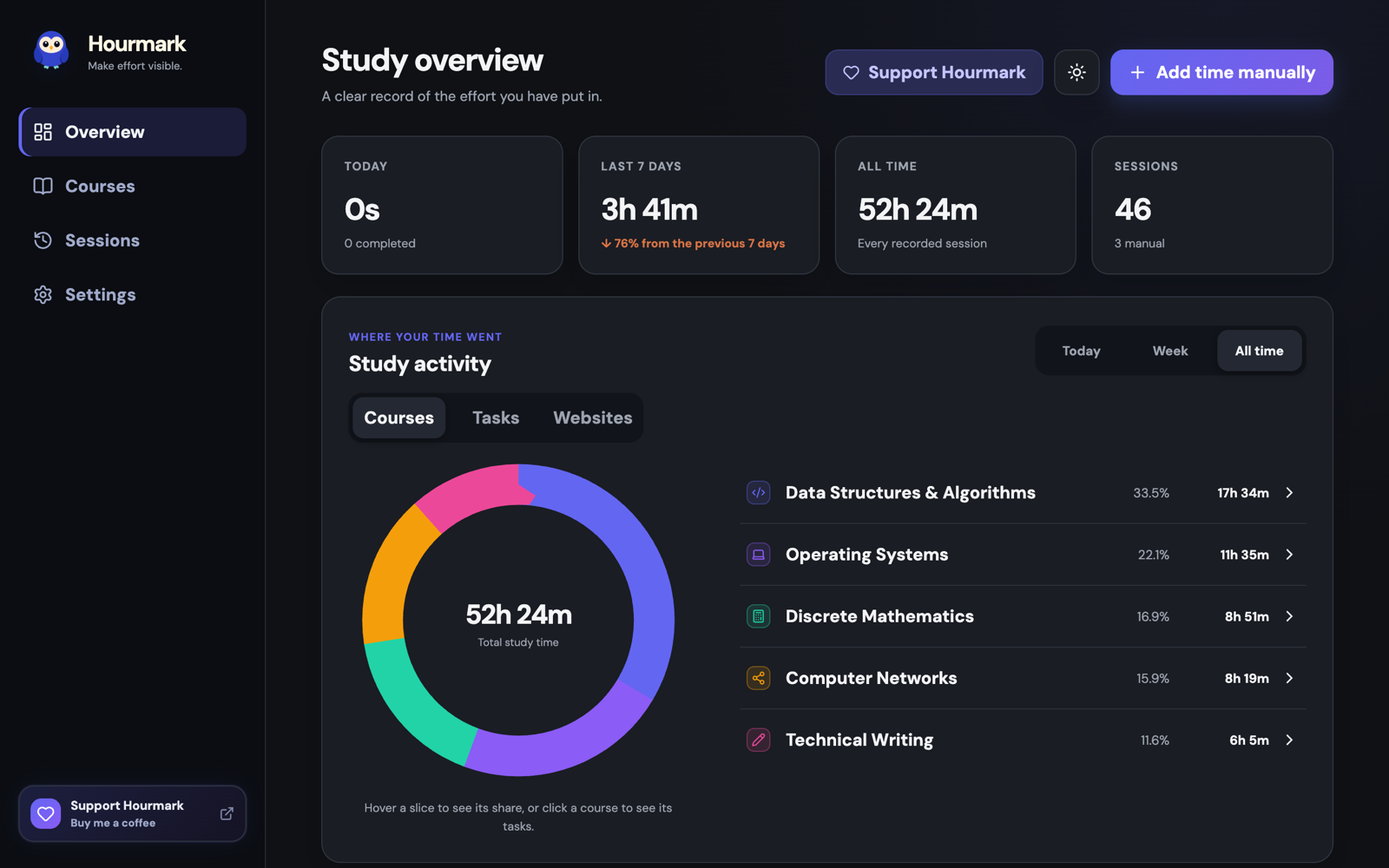
Overview shows study totals by course, task and website. Courses and tasks keep goals, notes and progress together. Finishing a session and completing a task are separate actions.
Hourmark and website darkening
Hourmark uses a dark interface. The moon control separately darkens websites. Use Filter to adjust brightness, contrast, sepia, or grayscale, and Sites to manage exceptions.
Local data and optional Google backup
Hourmark is local-first. Study tracking works without an account, and your working record stays in Chrome extension storage. Settings provides JSON export and import, activity retention controls, and deletion options.
Google sign-in and account backup are optional and require consent to enable sync. With backup enabled, Hourmark automatically restores and merges saved study data with the local record. Sync sends courses, tasks, notes, completed sessions, retained redacted website activity and preferences to the Hourmark Supabase backend. Active timers stay on their original device. Signing out pauses sync and keeps local data.
Website activity is recorded only during running focus. Stored addresses are redacted before persistence; pauses, breaks and stopped sessions record no activity. Hourmark does not collect passwords, form values, keystrokes or page body text, and does not collect Incognito activity. Website icons are bundled from favicon and vector resources rather than requested from a favicon service during use.
Outside Chrome indicates that Chrome lost focus; it does not identify other applications. Local-first does not mean anonymous or encrypted. Read the privacy policy for collection, account backup, permissions and deletion details.